List View vs Form View in Collections
There are two ways to view a list of objects in openBIS Collections: List View and Form View. Depending on the use case, one or the other should be chosen. However, this sometimes means that things might be hidden from users. Some users might not know about these differences. The concepts are explained below and how to change the view.
Default Collection View: List vs. Form View
Section titled “Default Collection View: List vs. Form View”| List View | Form View | |
|---|---|---|
| Interface | Reduced but compact | Detailed but overloading |
| Suggested for | Inventory | Lab notebook |
| View | Default View | Click Edit from List View |
| Shows | List of objects | General Info, List of objects, Identification Info |
| Datasets attached to collection | Not Shown | Shown |
| Options | [+ Selected object type] | [+ Selected object type] |
| [More]: New objects; Batch Register/Update; Search in Collection; Edit Collection | [More]: New objects; Batch Register/Update; Search in Collection; Edit Collection | |
| [Columns] | [Columns] | |
| [Filters] | [Filters] | |
| [Export] | [Export] | |
| [More]: Move; Delete; Export options; Freezing; History; Show and Hide options | ||
| [+ Folders] | ||
| [+ Dataset] | ||
| [Edit] Collection |
Changing the Collection View
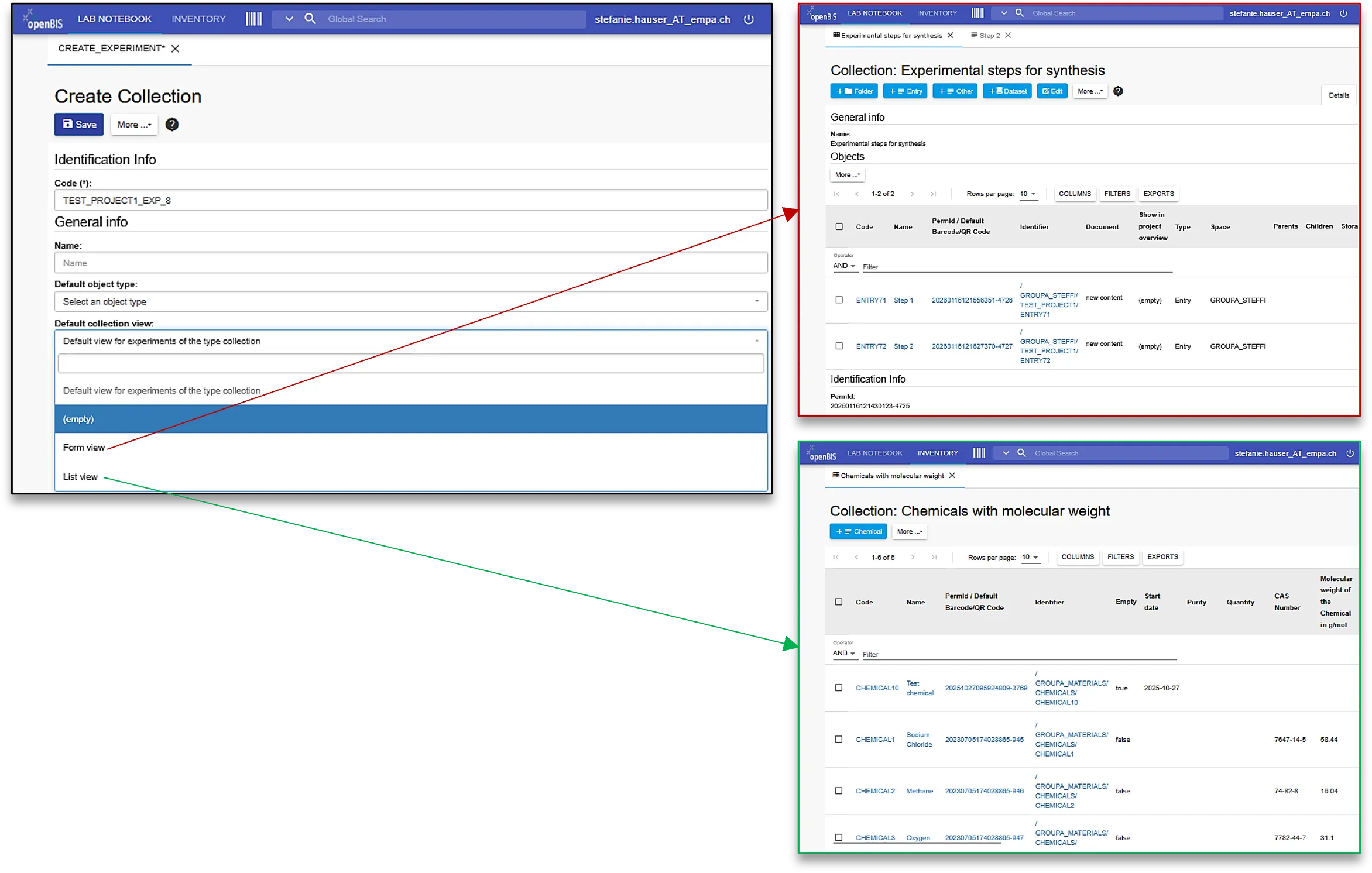
Section titled “Changing the Collection View”When creating a collection, you will have to choose between List and Form view. By default, it’s set to List view. The screenshot below gives an overview.
- If you view the collection in List View and click [More] > Edit, it will change to Form View.
- Looking at the collection in Form View and clicking [Edit] will open the collection editor.
The main reason for this is that List View is on top of Form View.